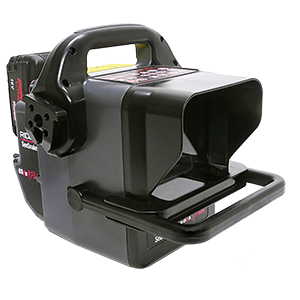
SeeSnake CS6xPak Version 2.21.88
Updates and Improvements
- Firmware update for TruSense cameras — After installing CSx software version 2.21.88 on your monitor, connect to a TruSense-enabled camera (firmware 2056 or higher) to apply
TruSense firmware version 2100 for improved performance. - Hourmeter feature added — New and refurbished TruSense cameras now include an Hourmeter function to display total usage time (hours:minutes). Existing TruSense cameras updated to firmware 2100 will show “Disabled,” since previous hours of use are unknown.
- How to view the Hourmeter — On a monitor running version 2.21.88 with a TruSense camera updated to 2100, open the TruSense menu, select Show more, then look for Hourmeter under Hide more.
- Enhanced connectivity and update experience — This release includes improvements for over-the-air updates via HQx Live on iOS devices.
- HQ Compatibility Notice — Jobs created on monitors running CSx version 2.21.88 will not import into
HQ Software for Windows. The next HQ release will restore upload capability.- To create a job report, manually add the media to a new job in HQ:
- Open HQ, create a New report, and select the Edit tab.
- Insert the USB with the media files into your PC.
- Drag and drop the media files into the empty report.
- Note: drop files onto the Session bar.
- Video tutorial: https://www.youtube.com/watch?v=ZbQHW-j4Opo