
SeeSnake CS65xr Software Revision History
Click entries with a “+” to show additional information about the software update.
Updates and Improvements
- Provides a firmware update for all SeeSnake TruSense-enabled cameras with version 2056 and above.
- After installing CSx software 2.22.18 onto your monitor, connect to a TruSense camera to update its firmware to version 2101.8.0.
- Camera Firmware 2101.8.0
- Supports new TruSense 2.0 Boards.
- Updates APX TruSense cameras to APX DSL.
- After the APX DSL update, a modal will appear with a QR code that will direct the user to the following support page: Introducing Digital Self-Leveling for SeeSnake APX Cameras.
- Changed default DSL settings:
- Default high dynamic range “ON”.
- Digital self-leveling mode “Fixed zoom”.
- Digital self-leveling background mode “Black”.
- Default fixed zoom “1.2”.
- Removed software update reboot modal that asks if the user would like to reboot now or later. This keeps the user from being interrupted when the background update completes.
Updates and Improvements
- Network adapter boot up time has been improved, offering a quicker and more reliable connection process to your monitor via HQx Live.
- Provides a firmware update for all SeeSnake TruSense-enabled cameras with version 2056 and above. After installing CSx software 2.20.58 onto your monitor, connect to a TruSense camera to update its firmware to version 2092. Firmware 2092 applies adjustments to the camera’s color output to reduce red hue and improve visibility in some in-pipe environments.
- View our new support pages on how this update works: TruSense Firmware 2092
- This update was previously only available for those cameras that were 2074 and above.
- “Image Enhance” toggle has been removed.
- The picture quality improvement that the “Image Enhance” feature offered is now included by default.
Updates and Improvements
- Image quality improvements
- Adds background Digital Self-Leveling (DSL) options to the TruSense menu for DSL-enabled reels
- Creates new standard Image Capture settings
Updates and Improvements
- Improves speed when re-connecting to HQx Live on iOS devices by resolving an issue that would slow down Wi-Fi re-authentication time if taken out of range of the monitor.
- Prevents the LCD display settings from changing video stream settings on HQx Live.
- Fixes a bug that would shut down the CSx monitor if the camera lost power multiple times in quick succession.
Updates and Improvements
- Provides a firmware update for all TruSense-enabled cameras with version 2074 and above. After installing CSx software 2.20.35 onto your monitor, connect to a TruSense camera to update its firmware to version 2092. Firmware 2092 applies adjustments to the camera’s color output to reduce red hue and improve visibility in some in-pipe environments. Learn more about updating your camera’s firmware here.
- Bug fixes and performance improvements.
Updates and Improvements
- Fixes a bug that can cause monitors to become unresponsive after updating to the latest software.
- Moves the “Image Enhance” toggle to the right Quick Access Menu.
- The right Quick Access Menu now retains memory for the last used item.
- Adjusts notifications for Auto zoom-in and Pan/Zoom features.
Updates and Improvements
- Introduces Auto Zoom-in: A new camera mode for digital self-leveling cameras that automatically zooms in based on the camera’s angle, delivering a smoother viewing experience. Accessible in the right Quick Access Menu by pressing the right arrow key.
- Adds Image Enhance: A new filter for our video feed that sharpens the image quality of what’s being viewed in the pipe. Accessible in the bottom Quick Access Menu by pressing the down arrow key.
Updates and Improvements
- Enhances the playback functionality for PhotoTalk recordings for a smoother experience.
- Resolves an issue where large job files from CS65xr and CS65x internal SSDs cannot be deleted.
- Fixes an issue experienced by some users where updating their CS65xr causes a black screen.
- Makes custom job names display in the correct format on saved files.
- Rectifies an issue where media becomes unplayable after pausing during a recording.
Updates and Improvements
- Adds odometer to Reel settings
- microREEL CA now appears when connected under Reel settings
Updates and Improvements
- Fixes USB video recording issue
- Improves Wi-Fi connectivity
- Other bug fixes and performance improvements
Updates and Improvements
- Adds support for the SeeSnake microReel APX, including the Auto Image Flip feature. APX reels flip your onscreen image as the camera rotates through the pipe, ensuring your image remains oriented upright. An on-screen icon indicates the vertical orientation with respect to the image.
Updates and Improvements
- Detects newer job and media file types on USB that are incompatible with older software releases. If the monitor is running older software, the system will prompt the user to update their software using HQx Live.
- Adds firmware support for cortex chip on included on newer monitors.
Updates and Improvements
- Improves video quality and recovery time when video disruption occurs in self-leveling cameras.
Updates and Improvements
- Adjusts size of UI elements.
- Adds new splash screen.
- Adds support for new GPS module.
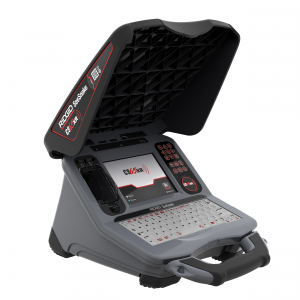
CS6xPak
The RIDGID® SeeSnake® CS6xPak Wi-Fi enabled reporting monitor is an all-in-one solution for capturing media and delivering inspection results to your customers, all right from the job site.
Pan and Zoom on CSx Monitors
Panning and Zooming is a helpful way to highlight areas of interest within the image displayed on a CSx device.
SeeSnake CS6xPak Version 1448
SeeSnake CS6xPak Version 1448 Updat [...]
SeeSnake CS6xPak Version 1450
SeeSnake CS6xPak Version 1450 Updat [...]
SeeSnake CS6xPak Version 1463
SeeSnake CS6xPak Version 1463 Updat [...]
SeeSnake CS6xPak Version 1475
SeeSnake CS6xPak Version 1475 Updat [...]
SeeSnake CS6xPak Version 2.17.128
SeeSnake CS6xPak Version 2.17.128 [...]
SeeSnake CS6xPak Version 2.20.17
SeeSnake CS6xPak Version 2.20.17 U [...]
SeeSnake CS6xPak Version 2.20.35
SeeSnake CS6xPak Version 2.20.35 U [...]
SeeSnake CS6xPak Version 2.20.42
SeeSnake CS6xPak Version 2.20.42 Up [...]
SeeSnake CS6xPak Version 2.20.6
SeeSnake CS6xPak Version 2.20.6 Up [...]
Over-the-Air Updates for SeeSnake CSx Monitors – iOS
How to update your SeeSnake CS6x, CS6xPak, CS6x Versa, CS65x, CS65xr or CS12x monitor over-the-air with HQx Live for iOS devices.
TruSense Feature Compatibility with SeeSnake Monitors
Learn what TruSense technology features are available with different SeeSnake digital reporting monitors.
Over-the-Air Updates for SeeSnake CSx Monitors – Android
How to update your SeeSnake CS6x, CS6xPak, CS65x CS65xr, or CS12x monitor over-the-air with HQx Live for Android devices.
Video Playback
Learn how to play back recorded videos on SeeSnake CSx monitors.
CS6xPak Software Revision History
View the software revision history for the RIDGID® SeeSnake® CS6xPak digital reporting monitor for pipe inspections.
ATEX Mode on SeeSnake CSx Monitors
Overview of ATEX mode on CSx monitors.
Sharing media with HQx Live and SeeSnake WI-FI equipped monitors
Learn how to share media using HQx Live with CSx monitors.
PhotoTalk Overview
How to capture PhotoTalk media on CSx Wi-Fi enabled monitors, the CS65, and the HQx Live mobile app.