
SeeSnake CS12x Support

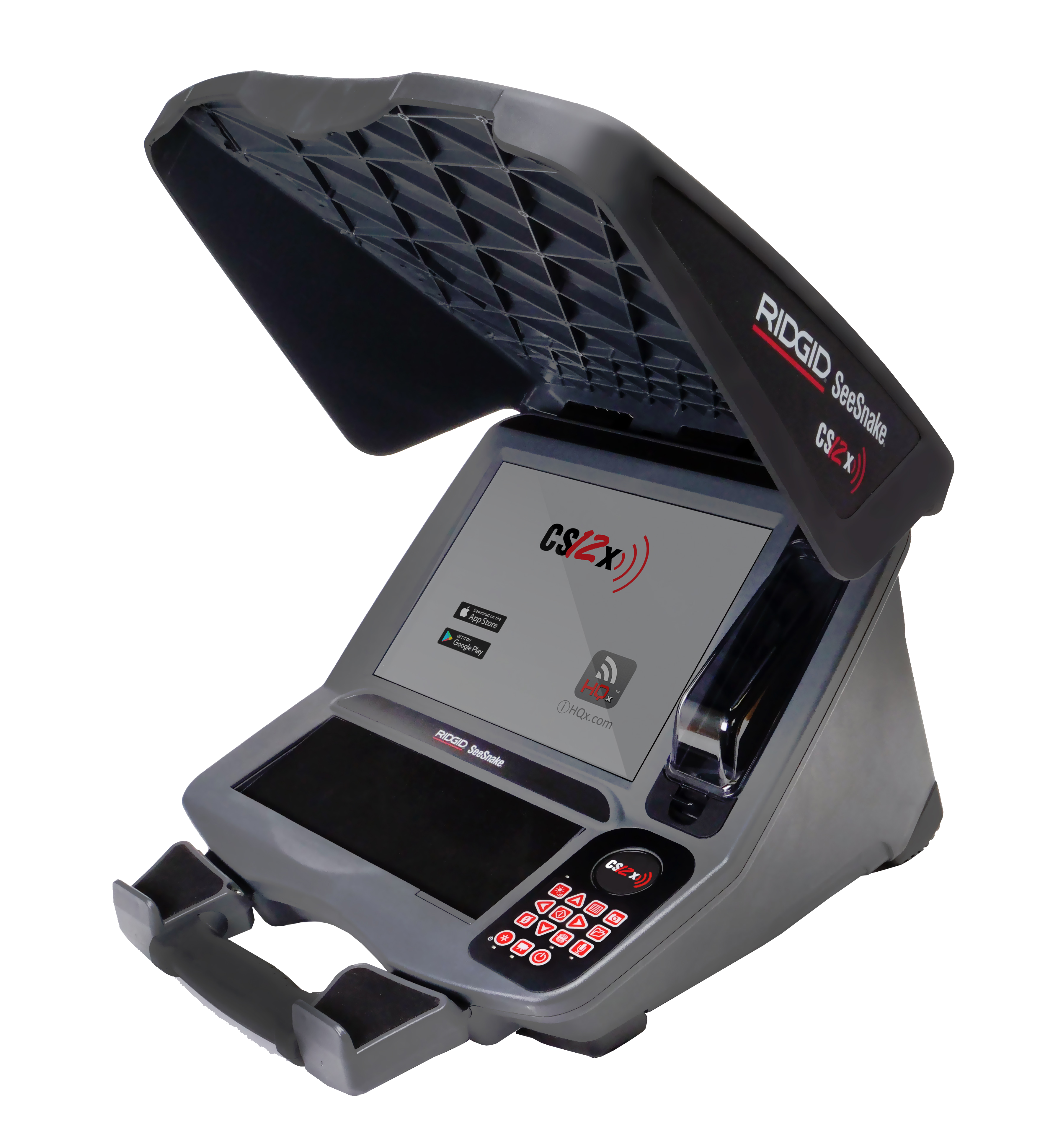
The RIDGID® SeeSnake® CS12x Wi-Fi enabled reporting monitor is the all-in-one solution for capturing media and delivering inspection results to your customers, all right from the job site. The high resolution and oversize 307 mm [12.1 in] screen is daylight viewable. Insert a second battery in the additional battery shoe for long-lasting power in the field, or use the included AC adapter.
Built for speed and efficiency, the CS12x captures images and video directly to a USB drive or external SSD. Professional multimedia reports are automatically created while you work, increasing your productivity and helping you move on to the next job.
The CS12x is compatible with all SeeSnake camera reels, and can dock onto the SeeSnake Max rM200 for easy transport.
Download HQx Live, the free iOS™ or Android™ companion app to use your mobile device as a second screen. Using the built-in Wi-Fi, pair a smartphone or tablet to the CS12x to provide uninterrupted, high-quality video streaming directly on the device, letting you show your customers the inspection in real-time. HQx Live also lets you capture media from a paired device.
Please Note: USB drives containing software downloads and product documentation will no longer be included with SeeSnake monitors. All manuals and documentation will now be available digitally through our support website. This change helps us streamline your experience while reducing waste.
Keeping your SeeSnake monitors up to date has never been easier than with over-the-air (OTA) updates, ensuring you have access to the latest features.
Learn more here:
What’s New — Version 2.22.18
Updates and Improvements
- Provides a firmware update for all SeeSnake TruSense-enabled cameras with version 2056 and above.
- After installing CSx software 2.22.18 onto your monitor, connect to a TruSense camera to update its firmware to version 2101.8.0.
- Camera Firmware 2101.8.0
- Supports new TruSense 2.0 Boards.
- Updates APX TruSense cameras to APX DSL.
- After the APX DSL update, a modal will appear with a QR code that will direct the user to the following support page: Introducing Digital Self-Leveling for SeeSnake APX Cameras.
- Changed default DSL settings:
- Default high dynamic range “ON”.
- Digital self-leveling mode “Fixed zoom”.
- Digital self-leveling background mode “Black”.
- Default fixed zoom “1.2”.
- Removed software update reboot modal that asks if the user would like to reboot now or later. This keeps the user from being interrupted when the background update completes.
Check out our CS12x videos to learn more. Click on the playlist icon in the top right to browse: