
SeeSnake CS6x Support

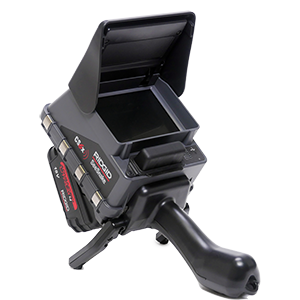
The RIDGID® SeeSnake® CS6x Wi-Fi enabled reporting monitor is an all-in-one solution for capturing media and delivering inspection results to your customers, all right from the job site. Built for speed and efficiency, the CS6x captures images and video directly to a USB drive. Professional multimedia reports are automatically created while you work, increasing your productivity and helping you move on to the next job.
The CS6x is compatible with all SeeSnake camera reels, and conveniently docks onto the SeeSnake Max rM200 for easy transport and storage.
Download HQx Live, the free iOS™ or Android™ companion app to use your mobile device as a second screen. Using its built-in Wi-Fi, pair a smartphone or tablet to the CS6x to provide uninterrupted, high-quality video streaming directly on the device, letting you show your customers the inspection in real-time. HQx Live also lets you capture media from a paired device.
HQ Software streamlines critical and routine updates which help improve and prolong the life of your equipment. HQ also gives you the ability to manage jobs and generate reports for customers. The included 8 GB USB drive comes with HQ preloaded.
Please Note: USB drives containing software downloads and product documentation will no longer be included with SeeSnake monitors. All manuals and documentation will now be available digitally through our support website. This change helps us streamline your experience while reducing waste.
Keeping your SeeSnake monitors up to date has never been easier than with over-the-air (OTA) updates, ensuring you have access to the latest features.
Learn more here:
What’s New — Version 2.22.18
Updates and Improvements
- Provides a firmware update for all SeeSnake TruSense-enabled cameras with version 2056 and above.
- After installing CSx software 2.22.18 onto your monitor, connect to a TruSense camera to update its firmware to version 2101.8.0.
- Camera Firmware 2101.8.0
- Supports new TruSense 2.0 Boards.
- Updates APX TruSense cameras to APX DSL.
- After the APX DSL update, a modal will appear with a QR code that will direct the user to the following support page: Introducing Digital Self-Leveling for SeeSnake APX Cameras.
- Changed default DSL settings:
- Default high dynamic range “ON”.
- Digital self-leveling mode “Fixed zoom”.
- Digital self-leveling background mode “Black”.
- Default fixed zoom “1.2”.
- Removed software update reboot modal that asks if the user would like to reboot now or later. This keeps the user from being interrupted when the background update completes.